.png)


What You'll Need
Hardware
- Raspberry Pi 4 or 5 (flashed and on your network)
- USB microphone
- USB speaker
- Power supply
- microSD card
Software / Accounts
- Viam account
- Python 3.9+ with the Viam Python SDK
Before you begin: Set up your Pi
Flash Raspberry Pi OS, get your Pi online, and install viam-server on it so it shows up in your Viam app. Follow the Viam setup guide end to end before continuing.
Step 1: Plug in your USB mic and speaker
Connect the USB microphone and USB speaker to any of the Pi's USB ports.
Step 2: Add the discovery service to find the speaker and mic
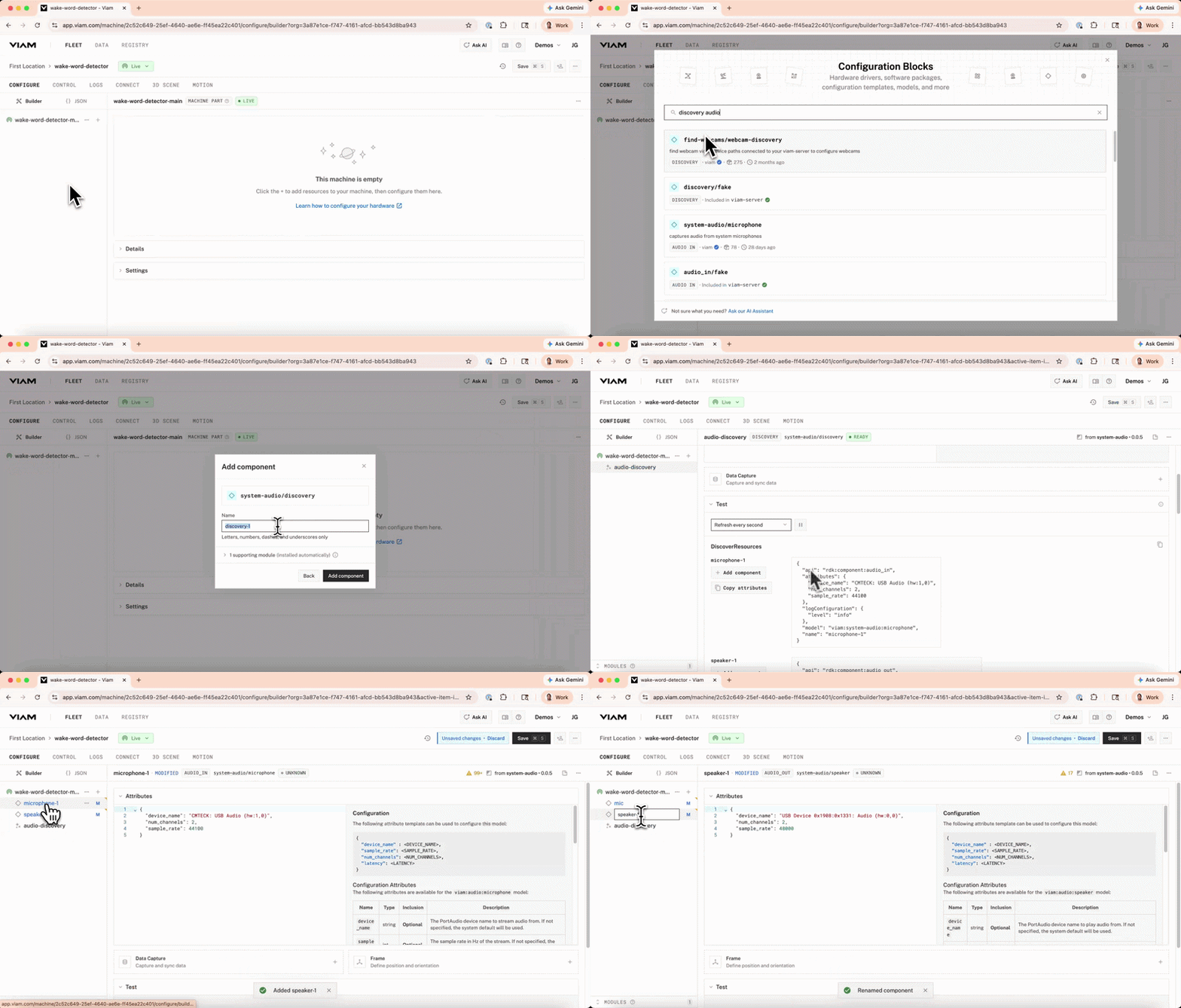
In your machine's CONFIGURE tab, click + → Configuration block and search for audio discovery. Add the system-audio/discovery module and name it audio-discovery. Viam will install the supporting module automatically.
Open the service's Test panel. You’ll see a list of audio inputs connected to the Pi (both speakers and mics). Click Add component on the ones corresponding to your specific speaker and mic combination to add them to your machine as mic and speaker.
Wake word detection currently only works for mics with num_channels=1 and sample_rate=16000. Make those changes in the Attributes section.
Step 3: Add and configure the wake word filter service
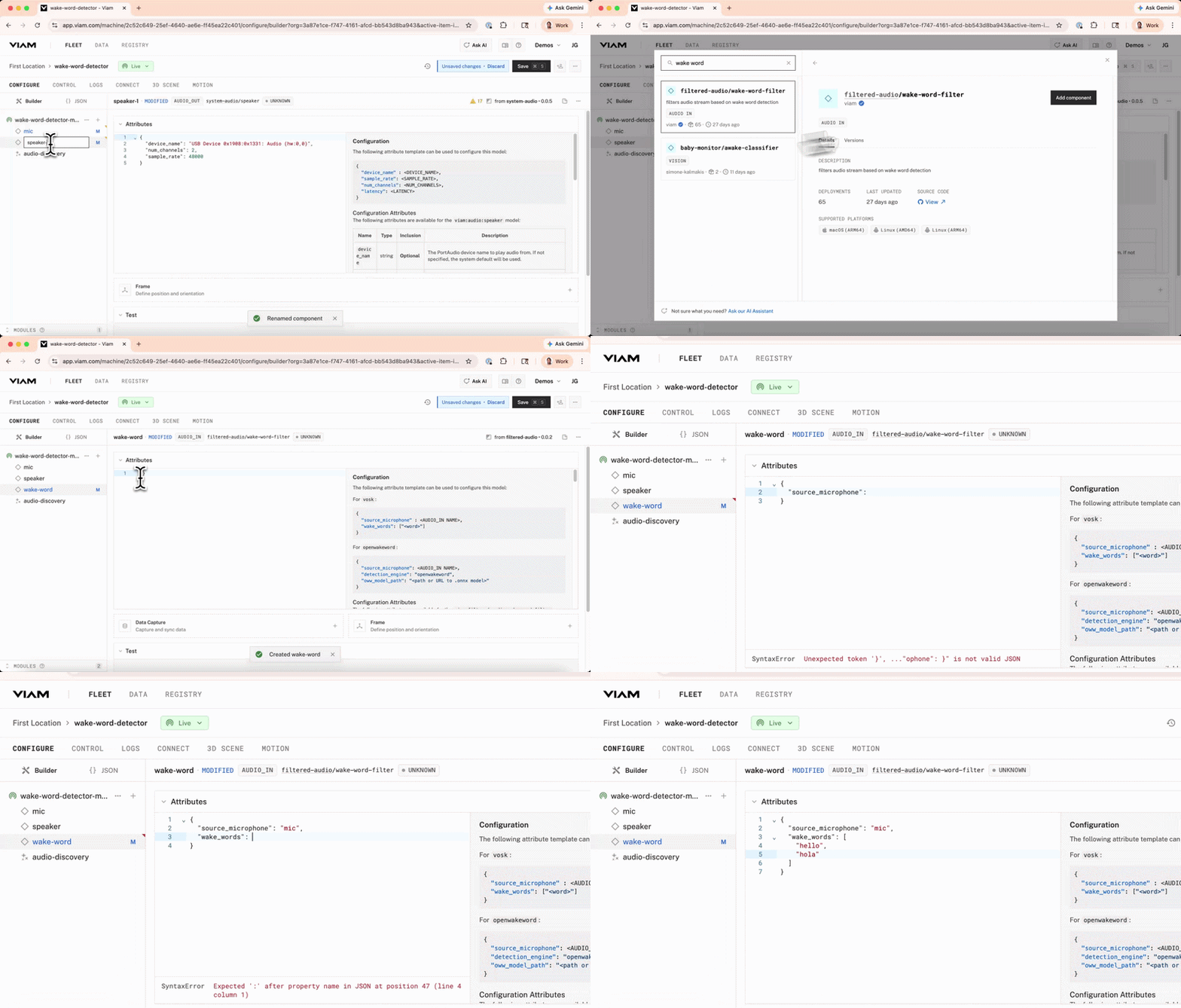
Click + → Configuration block again and search for wake word. Pick filtered-audio/wake-word-filter — it's an AUDIO_IN module that wraps your microphone and only emits audio when a wake word is detected.
Name the service wake-word and paste this into its Attributes panel:
{
  "source_microphone": "mic",
  "wake_words": [
    "hello",
    "hola"
  ]
}
The source_microphone points at the microphone component from Step 2, and wake_words is the list of phrases that will trigger capture. Add or swap phrases to taste. Our Alexa is friendly, so it answers to both English and Spanish greetings.
Step 4: Write control logic to act on the wake word
Create main.py on your dev machine. The script connects to your Pi, streams from the wake-word audio input, and pipes each detected segment straight into the speaker. While a segment plays, it pauses detection so the Pi doesn't hear its own voice and loop forever.
import asyncio

from viam.robot.client import RobotClient
from viam.components.audio_in import AudioIn
from viam.components.audio_out import AudioOut


async def play_segment(wake_word: AudioIn, speaker: AudioOut, audio_data: bytes, audio_info):
    await wake_word.do_command({"pause_detection": None})
    try:
        await speaker.play(audio_data, audio_info)
    finally:
        await wake_word.do_command({"resume_detection": None})


async def main():
    opts = RobotClient.Options.with_api_key(
        api_key='API_KEY_HERE',
        api_key_id='API_KEY_ID_HERE',
    )

    async with await RobotClient.at_address("your-machine-address.viam.cloud", opts) as machine:
        wake_word = AudioIn.from_robot(machine, "wake-word")
        speaker = AudioOut.from_robot(machine, "speaker")

        print("Listening for wake word...")
        while True:
            try:
                audio_stream = await wake_word.get_audio("pcm16", 0, 0)

                segment = bytearray()
                segment_info = None

                async for chunk in audio_stream:
                    audio_data = chunk.audio.audio_data

                    if len(audio_data) == 0:
                        if segment:
                            asyncio.create_task(
                                play_segment(wake_word, speaker, bytes(segment), segment_info)
                            )
                            segment.clear()
                            segment_info = None
                            print("Listening for wake word...")
                    else:
                        if segment_info is None:
                            segment_info = chunk.audio.audio_info
                        segment.extend(audio_data)

            except asyncio.CancelledError:
                return
            except Exception as e:
                print(f"Stream error: {e}")


if __name__ == "__main__":
    asyncio.run(main())
Grab the API key and key ID at CONNECT → API keys and the machine address at CONNECT → Connection Details. Drop them into their respective places at the top of main().
Step 5: Run the script and talk to the Pi
From the folder containing main.py, create a virtual environment, install viam-sdk, and run:
python main.pyYou'll see:
INFO    viam.rpc.dial (dial.py:336)
Listening for wake word...
Say "hello" (or "hola") into the mic. The wake-word filter captures your phrase, playback kicks in through the speaker, and once the segment finishes the script goes right back to listening.
What's next?
- Audio In API — stream and process mic audio in your own code
- Audio Out API — play generated or recorded audio through any speaker
Start building at app.viam.com.