.gif)


What you'll build
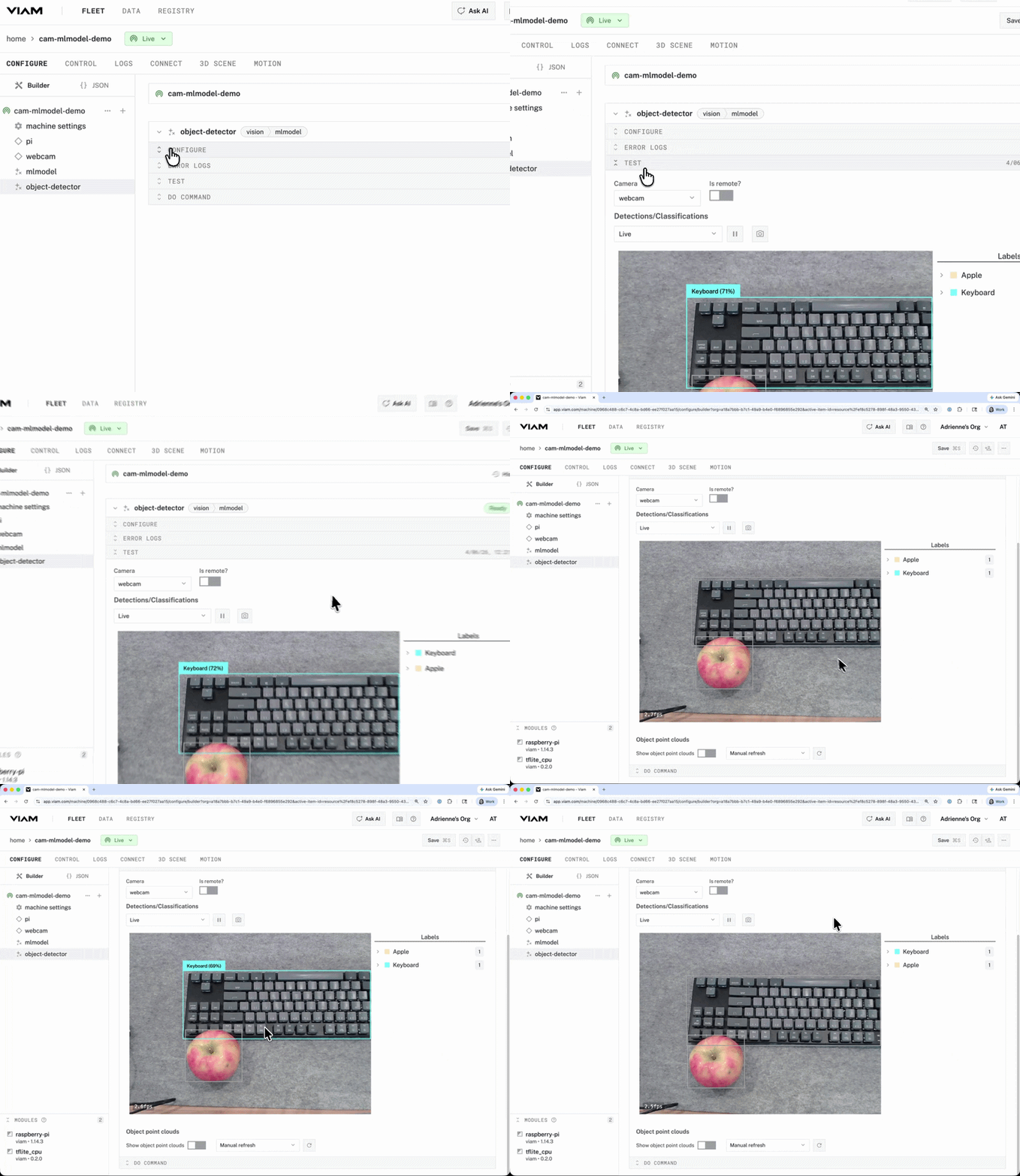
A live object detection pipeline running on a Raspberry Pi. The EfficientDet-COCO model (trained on 80 everyday object classes) will draw labeled bounding boxes around whatever your webcam sees — keyboards, cups, scissors, bowls, and more — directly in the Viam app's test panel.
What you'll need
Hardware
- Raspberry Pi 4 or 5
- USB webcam
Software / Accounts
- Viam account
- viam-server installed and running on your Pi
Before you begin: Set up your Pi
Create a machine in app.viam.com, install viam-server on your Raspberry Pi, and add the raspberry-pi:rpi4 or raspberry-pi:rpi5 board component (matching your Pi model) so Viam can communicate with your hardware. Follow the Viam setup guide to get your machine connected and the board component configured before continuing.
Step 1: Add a webcam
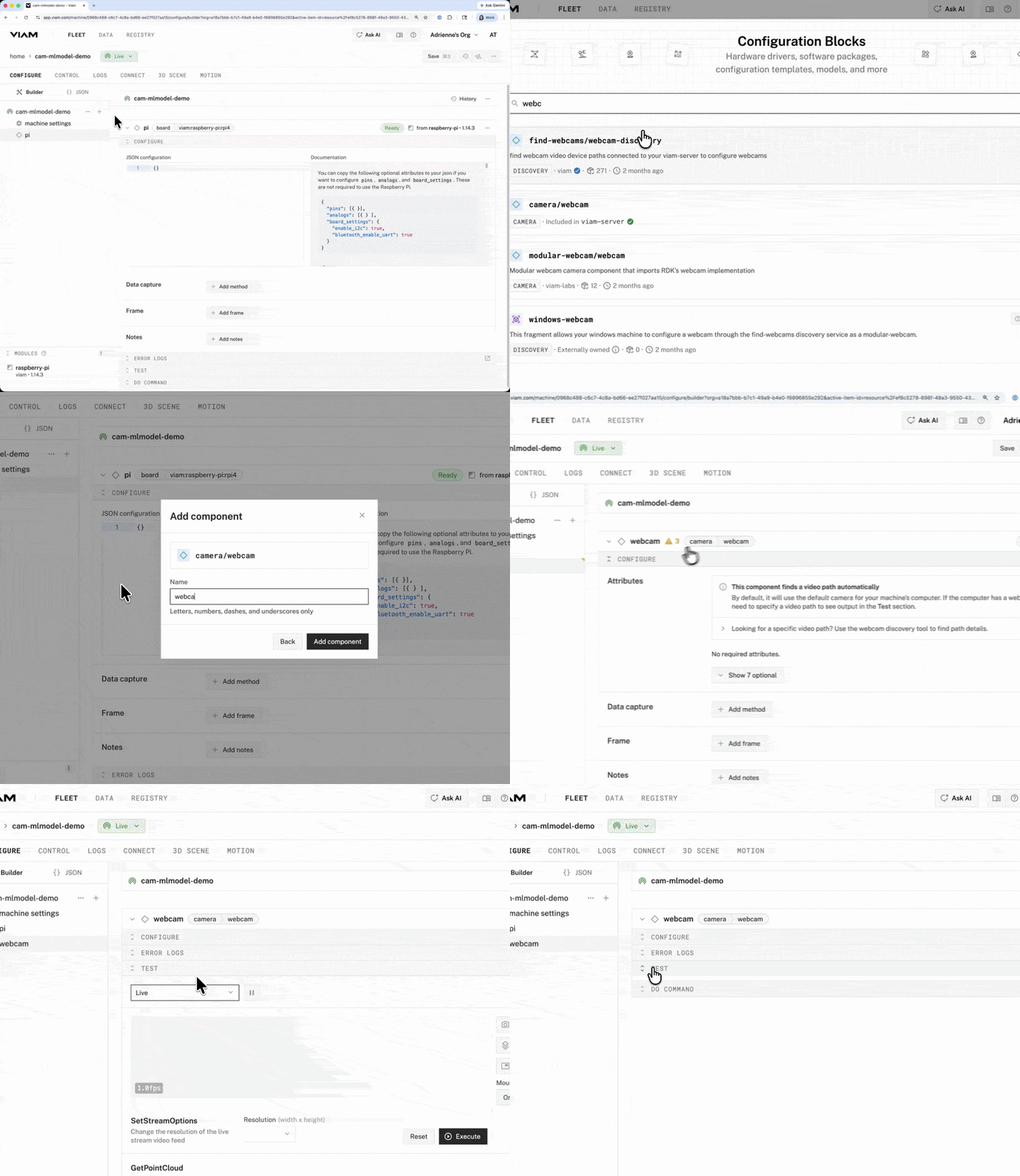
Plug your USB webcam into the Raspberry Pi. Open your machine's Configure tab in app.viam.com and click + to open the Configuration Blocks panel.
Search for webcam and select camera/webcam — this component is built into viam-server, so no extra module is needed.
Name the component camera and click Add component. The webcam component finds your video path automatically; if your Pi has a single USB webcam attached, no further attributes are required.
Don't forget to save!
Step 2: Add an ML model service and choose an ML model
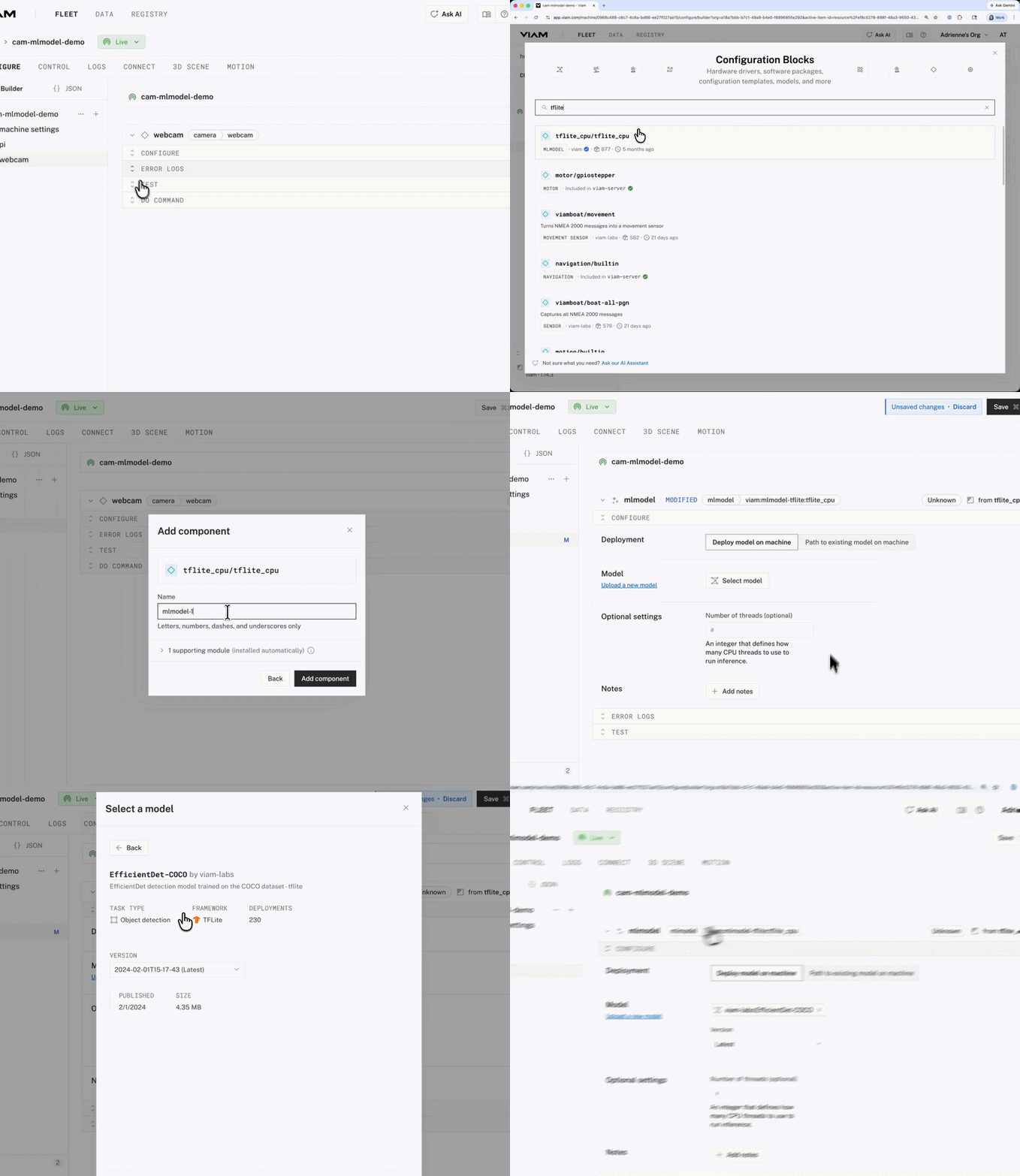
Click + again. Search for tfl and select tflite_cpu/tflite_cpu.
Name the service mlmodel and click Add component. Viam will automatically install the one supporting module this service needs.
After adding, click Select a model and switch to the Registry tab to browse community and open-source models — or use your own custom model. Select viam-labs:EfficientDet-COCO with version Latest.
Don't forget to save!
Step 3: Implement your ML model in a vision service
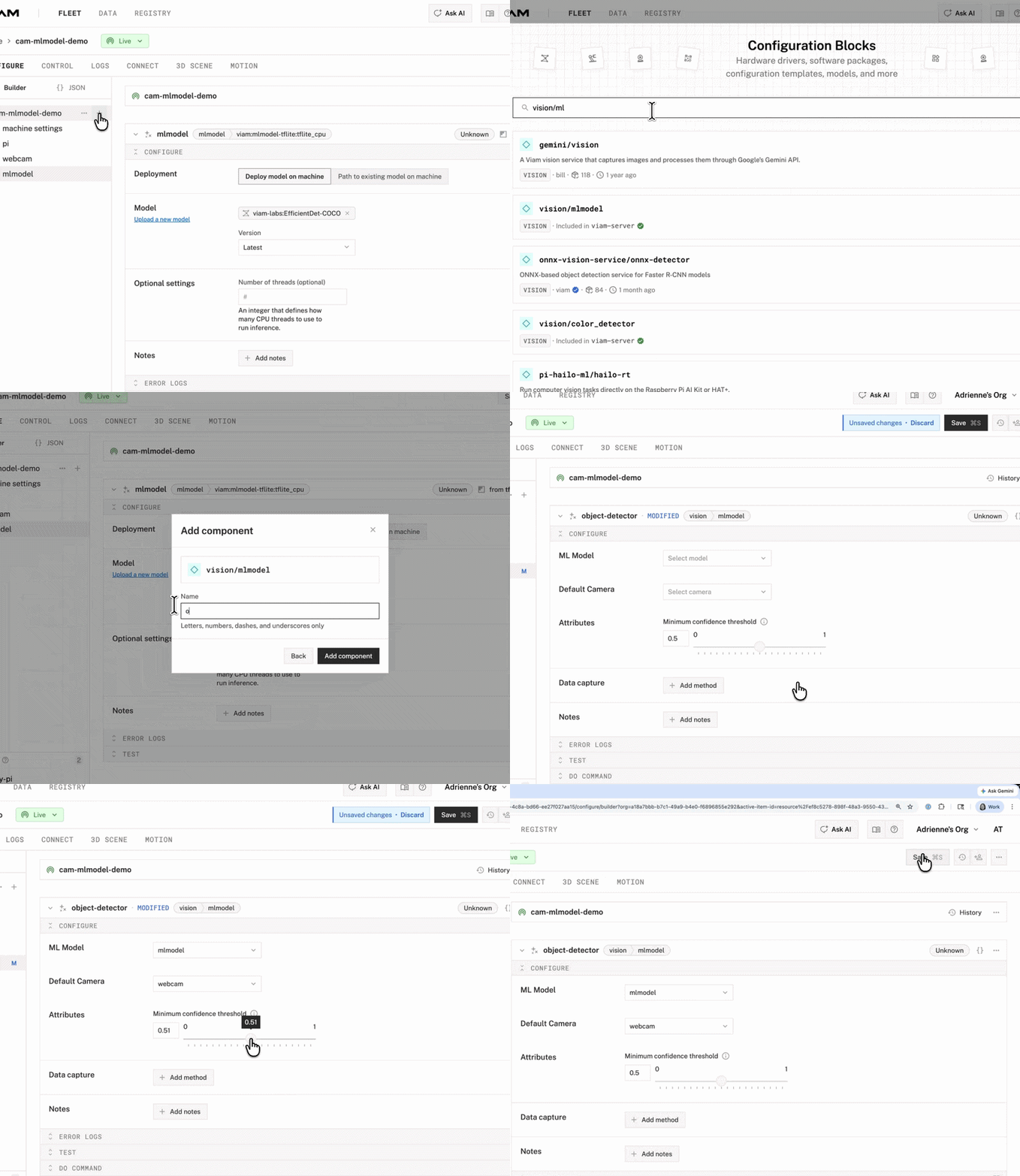
Click + one more time. Search for vision/mlmodel and add it with the name object-detector.
In the component's configuration panel, set:
- ML Model → mlmodel
- Default Camera → camera
- Minimum confidence threshold → 0.50 (a.k.a. 50% confidence — the model only draws a bounding box when it's at least this confident)
Don't forget to save!
See it in action
Open the TEST section of the object-detector component. Set the refresh rate to Refresh every second and watch bounding boxes appear over detected objects in your webcam feed. The Labels panel on the right shows each detected class and its count in real time.
You now have multi-object detection powered by EfficientDet trained on the COCO dataset, running live on a Raspberry Pi — with zero lines of code written.
What's next?
Ready to build something more? The Your First Project tutorial walks you through setting up a full machine from scratch and is a great next step after this demo.
- Browse more ML models — explore the Viam Registry for classification, pose detection, and custom object detection models
- Capture training data — use Viam's data management service to collect labeled images and train your own model
- Trigger actions on detections — use Event Manager to actuate hardware or send alerts when a specific object is detected
Start building at app.viam.com.