
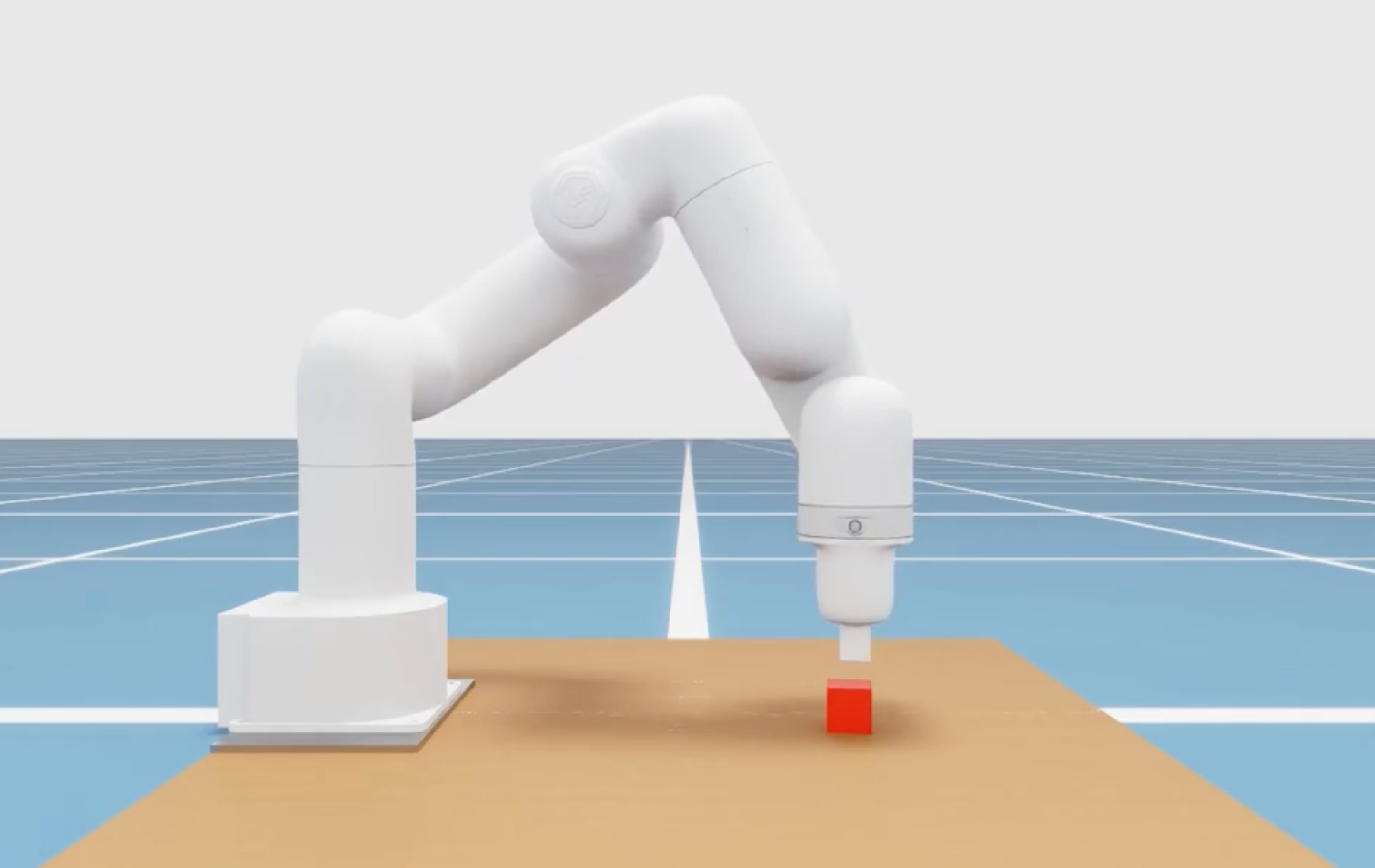
In this tutorial you’ll use our agentic flows and simulator to design a robot workcell, design a task for it, and then create a motion policy for it based on NVIDIA Cosmos 3 Edge, a 4B parameter world action model sized for edge deployment. You won’t need access to any physical robotics hardware, and the entire process is supported by agent skills and our native model training flow.
You’ll use your coding harness and our agentic flows to: connect to Viam, use the built-in NVIDIA Isaac Sim open simulation framework, and collect training data. You can use cutting-edge coding models, including frontier visual and spatial intelligence models like GPT-6 Astra, to automate the detailed work of training data design and workcell layout.
We encourage people to try this tutorial even if robotics or vision model training seem daunting. With Viam as the harness for physical AI, if you can control an agent, you can train a robot.
About the tools
NVIDIA Cosmos 3 Edge is a world action model. A world action model comprises a pre-trained vision model that can understand and predict physical motion, and an action model that can produce joint sequences to control robotics hardware. Because they come pretrained with an understanding of spatial relationships, new task-specific policies can be post-trained on a small set of demonstration episodes. Learn more here.
Viam is an agentic platform for developing and operating robots. It provides developers and agents with the entire lifecycle of creating and training a robot, from design to deployment to data.
What you’ll accomplish
By the end of this tutorial, you will have:
- Designed a workcell in Isaac Sim
- Designed a simulated task for it to perform
- Run through randomized task episodes to collect a training set with videos and robot poses
- Trained a motion policy
- Deployed the policy back to the simulator and run it to execute your trained motion
You’ll use the Viam agentic skills and simulation environments throughout; you can use these at a very high level, giving the agent large steps and only inspecting the videos, or you can dive deeper, designing the robot action yourself and executing or editing the scripts.
If you’re new to these concepts, you’ll come away from this tutorial understanding how to collect training data for a robot policy, how to deploy it, and how to apply the visual reasoning capabilities of frontier LLMs like Astra and Fable.
Our agent tools will guide you at each step, and if you get stuck, each section has a ‘Fast path’ option for using a premade setup.
Who is this for
You should be comfortable working in an agentic coding harness and running python commands in the terminal, but you don’t need a physical robot or prior ML experience.
The scripts were developed for MacOS and Ubuntu Linux; Windows through WSL may work as well, but has not been tested.
Setting up your environment
All you need for this tutorial is a laptop with a web browser, a terminal that can run python, and a coding harness like Codex or Claude Code.
Viam
You’ll be using Viam to configure and control your simulated robot. Head to app.viam.com and create an account if you don’t have one.
Harness setup
Install our agentic workflows and MCP server in your harness:
- Type /plugins, navigating to the ‘Marketplaces’ or ‘Add marketplace’ tab (with the right arrow key), hitting Enter to add a marketplace, then using
`viamrobotics/viam-agentic-kitas the source. - That should take you to the plugins list for our marketplace. There’s only one (viam-agentic-kit), hit enter to install it.
- The plugin registers an MCP server for Viam, but doesn’t authenticate for you. Run /mcp, scroll down to plugin:viam-agentic-kit:viam, hit enter, and follow the prompts.
This installs a set of skills and subagent definitions that understand the end-to-end workcell design and training process, and can route to frontier models for visual and spatial tasks.
Clone the tutorial scripts
Some of the steps here, like your robot’s action and episode capture, will be controlled by code running on your laptop. We’ve created a scripts repo you will need.
Get the scripts by:
- Open a terminal on your laptop
- Clone the cosmos-tutorial repo with
`git clone https://github.com/viam-labs/cosmos-tutorial` `cd cosmos-tutorial`- Install the
`uv`tool for python package management from the instructions here: https://docs.astral.sh/uv/getting-started/installation/
Design your robot and tasks
- Create a fresh machine at app.viam.com to use for this. (A machine is an individual robot in our system). Use the ‘Simulate’ button to create a sim container for your robot; this is a GPU-enabled remote machine where your robot will run.
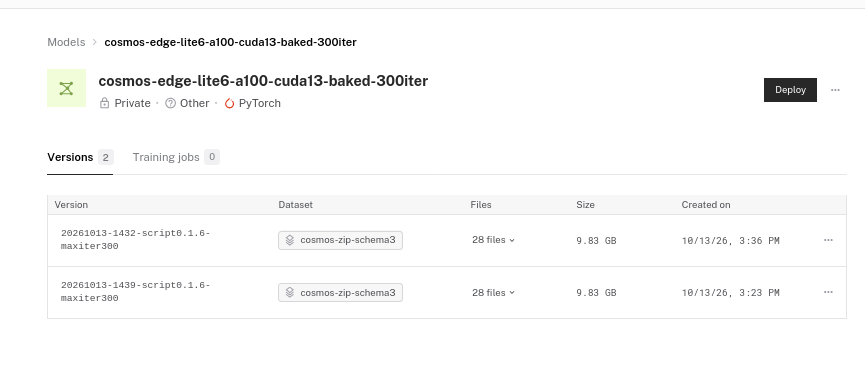
- The rest of these steps will be in your coding agent, but can be done from the web UI if you prefer.
- In the terminal, start your agent in the cosmos-tutorial folder so that it has easy access to the scripts it will need.
- Prompt your agent to install the
viam-labs/cosmos-tutorialfragment on the new machine. A fragment, in our system, is a bundle containing multiple sub-objects; in this case an arm, table, the simulator logic, and toy blocks to pick up. - Wait for everything to start. You can watch progress in the Logs tab or ask the agent to monitor startup and ping you when done. This should take about 90 seconds after adding the fragment. You’ll know you’re done when you can visit the Control page and see a running robot below.
- Now you have a fully running simulator. Switch to the Control tab and check out your robot. If you click ‘scene-cam’ resource on the left panel, you should see your scene:
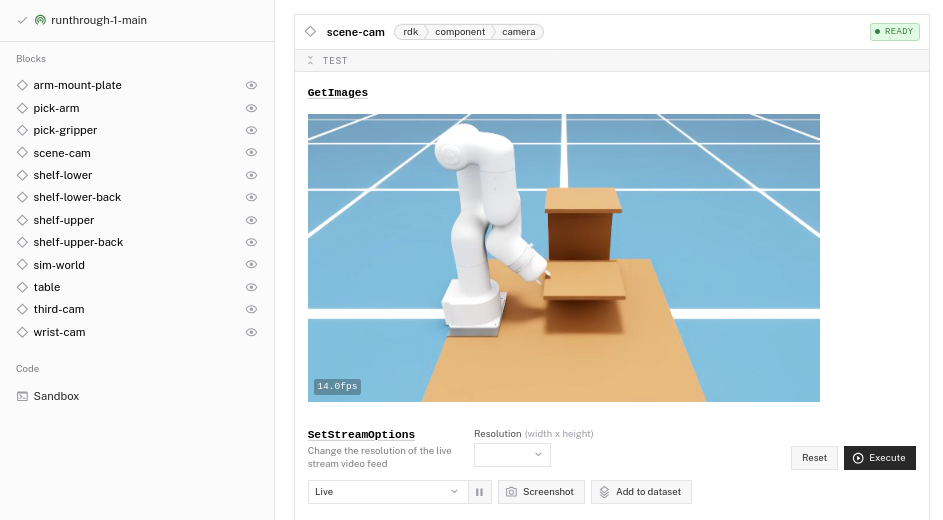
- Then switch the camera to ‘Live’ mode, pop it out using the browser’s picture-in-picture controls
- Last, click the ‘pick-arm’ resource on the left panel. If you hit the ‘jog’ toggles on the arm controls, you should see the arm move in response. You can also ask the agent to do some sample motions for you.
While you’re here, grab credentials for your robot:
- In the web UI, go to the page for the new machine you created, click the ‘Online’ dropdown, and click ‘Machine cloud credentials’ to copy what you need.
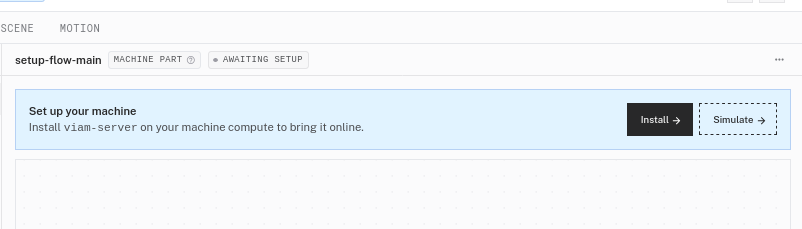
- Paste that into /etc/viam.json on your laptop; the scripts will look for it there.
Now comes the fun part: designing the robot and task you want to train.
- If you installed the viam plugin correctly above, your agent should automatically use the agent skills to guide you around hard edges; just to be safe, ask it if it has access to workcell-design and the other viam skills, and repeat the plugin install above if not.
- Decide on a robot layout. A good prompt here is ‘Can you guide me through a basic workcell design?’. We recommend a single arm, ideally the UFACTORY Lite 6 we use in our demos, to start; if you plan to train a bimanual, non-6-DOF, or non-arm robot, that’s great! But bear in mind your agent will have to edit some training scripts. Ping us on discord if you try a different design and run into trouble.
- As you design the robot, the agent will add and subtract components from the initial ‘cosmos-tutorial’ fragment. Try prompting it to add shelving or racks, clutter on the table, or colors and textures.
- Decide on a task. Consider variations on picking up something, putting something somewhere, turning something, selecting a specific object from a group. See ‘Design and run your task’ below for more details about this.
The agent knows what to do here, can configure your machine, and can query logs and look at cameras if you run into trouble. You should manage it at whatever level you’re comfortable with.
Design and run your task
At a high level, a ‘task’ is a series of commands that your policy will associate with a prompt. For example, ‘pick up the red block’ will move the gripper to a spot above the red block, descend, grip, and lift.
Frontier models are very good at the spatial reasoning required to get this right, and the visual reasoning required to evaluate your results; our agent plugin will route this kind of request to a larger model as needed.
You or your agent will write your tasks by modifying the oracle_episode.py script in the cosmos-tutorial repo. These are ‘oracle’ tasks in that they have perfect knowledge of the state of the simulation, and are not relying on vision or learned actions. The Cosmos model you train farther down will use these perfect-knowledge episodes to learn how to execute these tasks using vision.
Create training episodes
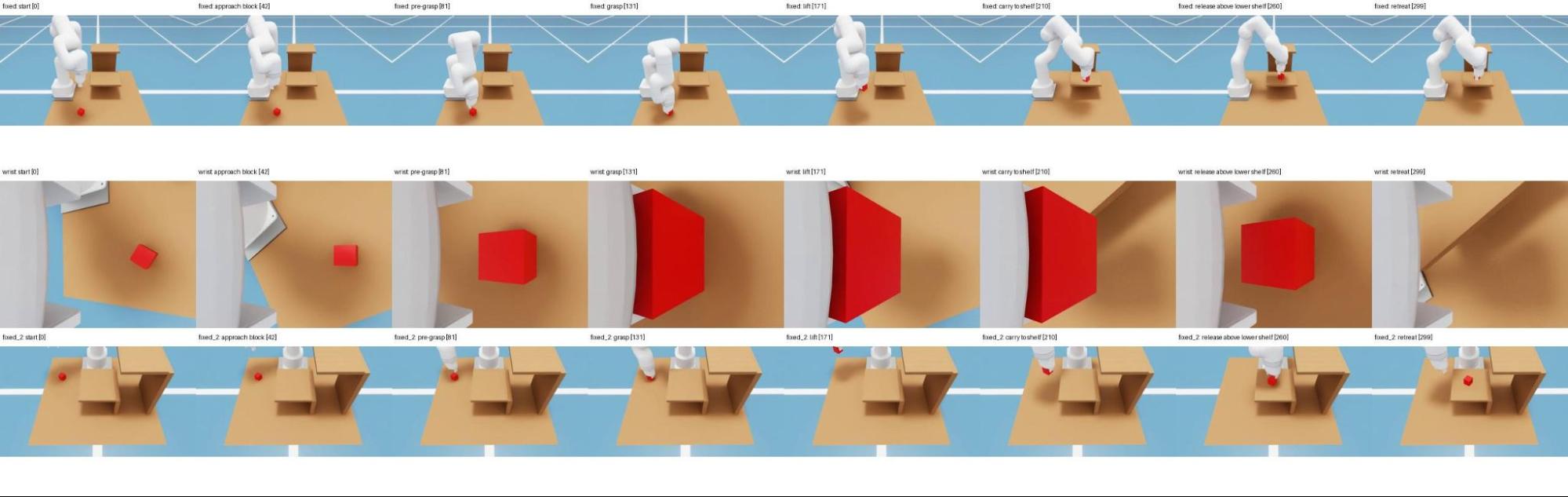
Now that you have a working robot and task, your next step is to collect randomized episodes to train on. If you’d rather skip ahead and see a working model post-trained by Viam, scroll down to the ‘existing trained policy’ fast path.
Next to oracle_episode.py you should find batch_episodes.py; this will let you run tens of random copies. You may be able to use this with no changes. If you added new settings to oracle_episode.py in the previous section, the agent will need to update batch_episodes to pass them through.
Start by creating a short sample dataset:
- Ask the agent to create a sample dataset of 5 episodes and pull down the episodes so it can evaluate them and so you can watch the videos. (You can also
`uv run batch_episodes.py`with a`--count` and `--dataset`argument if you prefer) - Wait for the runs to complete. You can watch them execute on the control page in your web UI.
(A dataset in Viam is a collection of items used for training an ML model; they’re stored in our backend and accessible through the UI and SDKs).
Once this works to your satisfaction, we suggest post-training on 100 episodes for a usable policy. To begin with, start with 10 for a faster iteration loop.
There is some nuance in creating a good dataset, but the episode scripts and the episode-capture skill in our agent plugin have good defaults and guardrails to steer you towards something usable.
Your high-level steps for managing this process are:
- By eye or through your agent, make sure that most of your episodes are succeeding. After the agent downloads your dataset, you should watch all 3 cameras for the first episode, and the scene camera for a few more.
- If you’ve modified the workcell or task, it’s likely that some episodes will fail at first. Issues you’ll hit: positioning logic, workcell layouts that prevent the robot from reaching a target, moving too fast or too slow, physics settings causing the object to slide out of the gripper. The agent can fix most things by itself, but if the layout of the workcell looks obviously wrong to you, tell it what adjustments to make.
- The episode runner has a success tracker built in so that bad episodes aren’t used for training, and it’s okay if a few fail. But if many fail, it’s likely a workcell issue and your post-trained motion policy will fail in the same way; so keep generating batches of 10 episodes, and adjusting, until you can run 10 episodes with 9 or 10 successes.
- Next, make sure your episodes have random start points, random pick and target locations, and some small random noise in the arm’s motion, so the policy sees the arm drift off course and correct itself. The base oracle_episode.py has patterns for this, and the agent knows to follow them, but you should check as well. Inspect a few episode videos and eyeball that the arm is at a different place each time at the beginning of the video, and that the object to pick is in a different place, ideally with a different rotation. If there’s clutter, randomize that as well.
You don’t need to generate a full 100 episodes yet if you’re just testing the end-to-end flow – you can create 10 or so and submit the dataset for a short training session (next section).
Train your policy
In this section you’ll use the demonstration episodes you recorded above to post-train a robot policy. At the end of this step you'll have a motion policy based on NVIDIA's Cosmos 3 Edge world model, but specialized for your task and your simulated workcell. If you’d rather skip the training steps and try an action policy created by Viam, scroll down to the ‘existing trained policy’ fast path below.
The training script lives in the training/ folder of the cosmos-tutorial repo. You won’t have to modify anything in here as long as your robot is a 6dof arm with a gripper. If you built something more complex (multi-arm, hands, etc), ask your agent to modify the action space in the training script and the policy runner in the ‘deploy’ step below.
For this step you’ll also need our CLI:
- Install it from the instructions here https://docs.viam.com/cli/overview/#install
- Then run
`viam login`in your terminal and follow the login flow in your browser
To submit a robot policy training job, in any folder on your terminal, fill in the two ‘xxxx’ fields in the snippet below and run it in your shell. Your agent can also do this.
# Submit your training job.
# This takes 30 minutes to several hours and costs money; see 'Setting iterations' below.

MODEL_NAME=cosmos-edge-lite6 # up to you
ITERS=10 # see 'Setting iterations' below
CONTAINER_ID=08d4a43e-f7c2-4463-83ef-67f836ac5ae9 # this is the common base container defined in the cosmos-tutorial repo
ORG_ID=xxxx # get this from the web UI (your org -> settings) or from running `viam org list` on the CLI
DATASET_ID=xxxx # you can find this in the Data -> Datasets section of the UI, or ask your agent. It's 'Copy Dataset ID' in the 3-dot menu

viam train submit custom from-registry --dataset-id $DATASET_ID --org-id $ORG_ID \
    --model-name $MODEL_NAME --script-name 6efeb7e5-91aa-4187-8ed3-e84764726078:cosmos-edge-7d \
    --version 0.1.1 --container-id $CONTAINER_ID \
    --args max_iter=$ITERS,dataset_id=$DATASET_ID

# you can view your in-progress job at https://app.viam.com/models
The training jobs run on Viam hosted hardware and it will bill your Viam account by the minute once you exceed our free tier. See below for approximate runtimes.
If you’ve modified the robot cell enough to need a new action space (i.e. non-6dof arm, or other changes to the number of dimensions in the control policy), you’ll need to modify the training script in cosmos-tutorial and upload a custom one. There are instructions for this in the cosmos-tutorial/cosmos_train/README.md and your agent can help.
Setting iterations
The training script’s defaults are set for a 6-DOF arm with around 100 episodes. The one setting you need to choose is the number of iterations; everything else is optional.
You set this with max_iter (the ITERS variable in the submit command above). Training takes time and costs money, so it pays to build up to a full run. We recommend working up in steps, each checking something before you spend more on the next:
- 10 iterations (about 15–20 minutes) to check that your dataset and the script work end to end.
- Optional: 50 iterations (about 35 minutes) to try deploying your own policy. It won’t complete your task, but you can see the arm move under its control.
- Optional: 500 iterations (about 4 hours) to see how training is going: the arm should move with purpose toward the task, though it will likely still fail often.
- 1,500 iterations for about 100 episodes (about 12 hours) for a usable policy. Scale it with your data: double the episodes, double the iterations. Don’t stop early: in our tests the model kept improving through the end of training.
When your training job finishes, or if it fails, you’ll get an email notification.
Deploy the policy to your robot
You’re now ready to run a policy on your robot. If you’d rather test our prebuilt model, scroll to the ‘existing trained policy’ fast path below.
- First find your model in Data -> Models in the web UI. Hit the Deploy button, then follow the prompts to add this model to your robot. Initially, deploy to the same robot where you generated the training data (or an identical layout).
- Follow the prompts to add this model to your target robot.
- This should result in a ‘generic-1’ instance on your robot’s Configure page. If you’ve renamed any of the components in the original ‘viam-labs/cosmos-tutorial’ fragment, ask your agent to update the config for generic-1, otherwise proceed.
- Wait for the model to download. You can watch progress in the Logs tab.
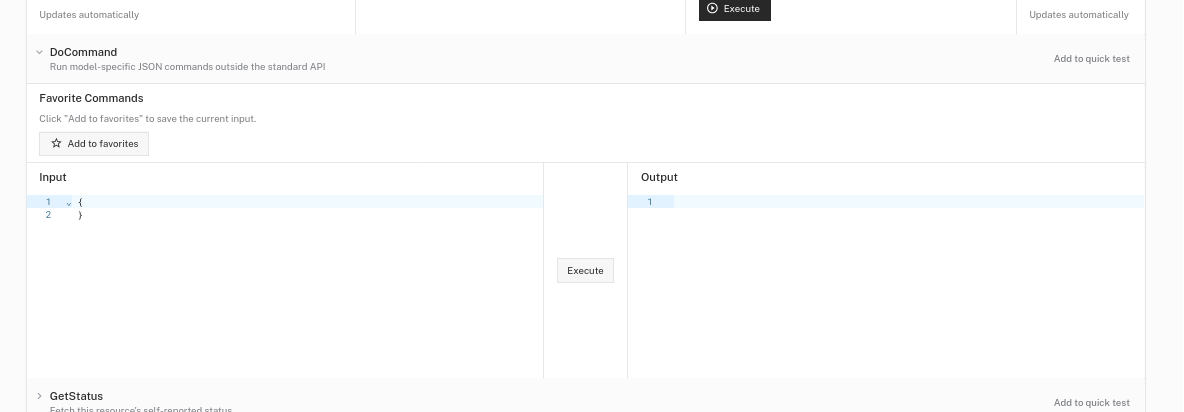
- Back on the Configure page, in the generic-1 component again, scroll down to the DoCommand panel.
- Start the policy server by pasting in `{“command”: “policy_server”, “action”: “start”}` and hitting Execute. Keep this browser tab running so that the command isn’t interrupted. You’ll get an output in 30 or so seconds when it finishes starting up. This is managing NVIDIA’s upstream cosmos-framework runner under the surface.
- In the cosmos-tutorial/episodes folder, run:
uv run arm-policy-workflow <machine_address> --policy generic-1 --prompt "Pick up the block" --action-prefix-duration-sec 1.0 --world sim-world(Or ask your agent to do this. If this fails to connect, make sure you ran the ‘grab credentials’ step above). - Open the Control page in a new browser tab, scroll down to the scene camera, switch it from ‘Refresh every second’ to ‘Live’ mode if you want, and watch as your policy is executed.
- If you don’t see motion, switch back to the browser tab where your Configure page is running and look for errors. Paste errors into your agent if something goes wrong, and ask it to look at your robot’s logs as well.
- You have now successfully run a world action model! Thank you for following along with us to the end.
Fast path: existing trained policy
First, follow the instructions above to create a fresh robot with a running sim container and the ‘cosmos-tutorial’ fragment.
Then visit the existing public trained model at https://app.viam.com/ml-model/viam/cosmos-xarm-pick and click ‘Add to machine’. After that, follow the normal ‘Run the policy’ instructions above to get this model onto your fresh robot.
Next steps – deploy to a live robot
Epilogue: some of you aren’t just simulating, you have live robot arms in your warehouses and laboratories.
In Viam, a simulated robot and a real one are essentially the same. In the next installment of this series we’ll walk you through using frontier models and Viam to capture live episodes, augment your simulated training set, and get onto a production arm.